How To Fix Panel Failed To Load Landing Page

Published on November 01, 2025 · 6 min read
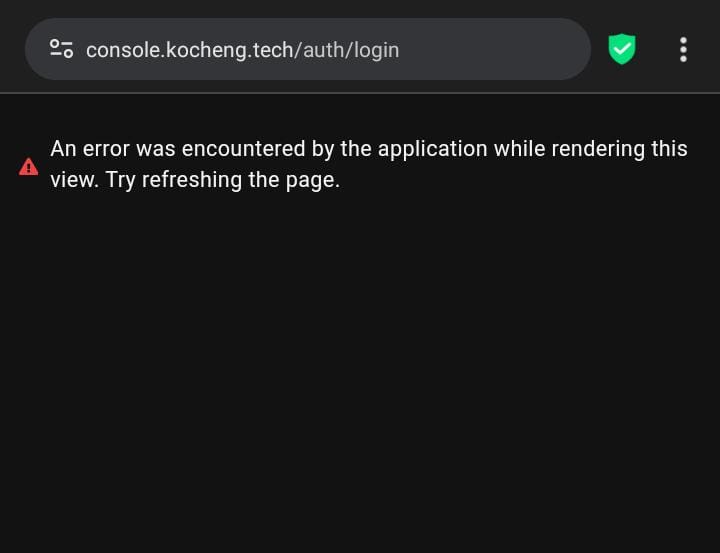
Have you encountered an issue like the one shown in the image below? It occurs when Chrome’s default ad blocker is enabled, causing the ad blocker warning notification to display "Failed to load." To resolve the issue, simply disable Chrome’s default ad blocker as illustrated below.
Our system is asking you to disable Adblock so that the advertisements we display can appear. Please read more about our Advertising Policy.
How to Disable Adblock
Follow the steps below:
-
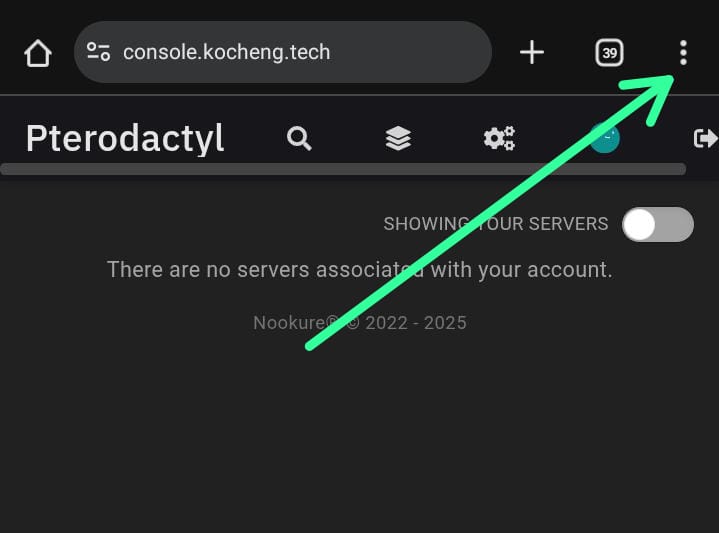
Select the three-dot menu in the upper-right corner beside the search URL.
-
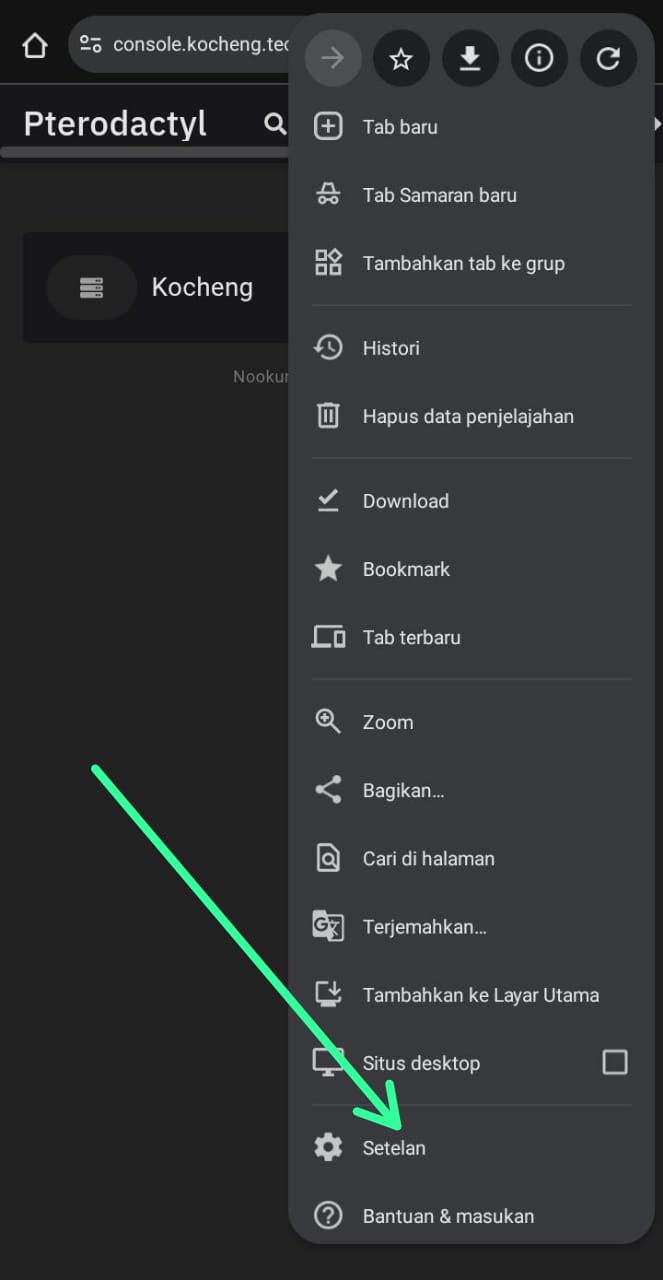
Next, select the Settings menu.
-
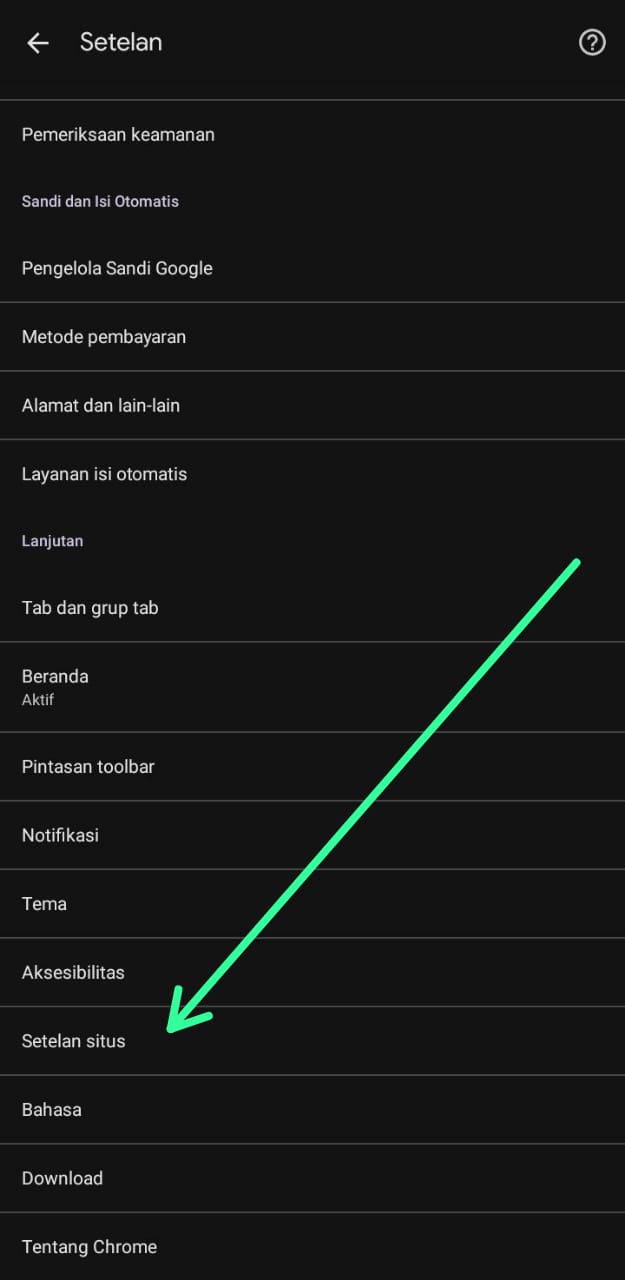
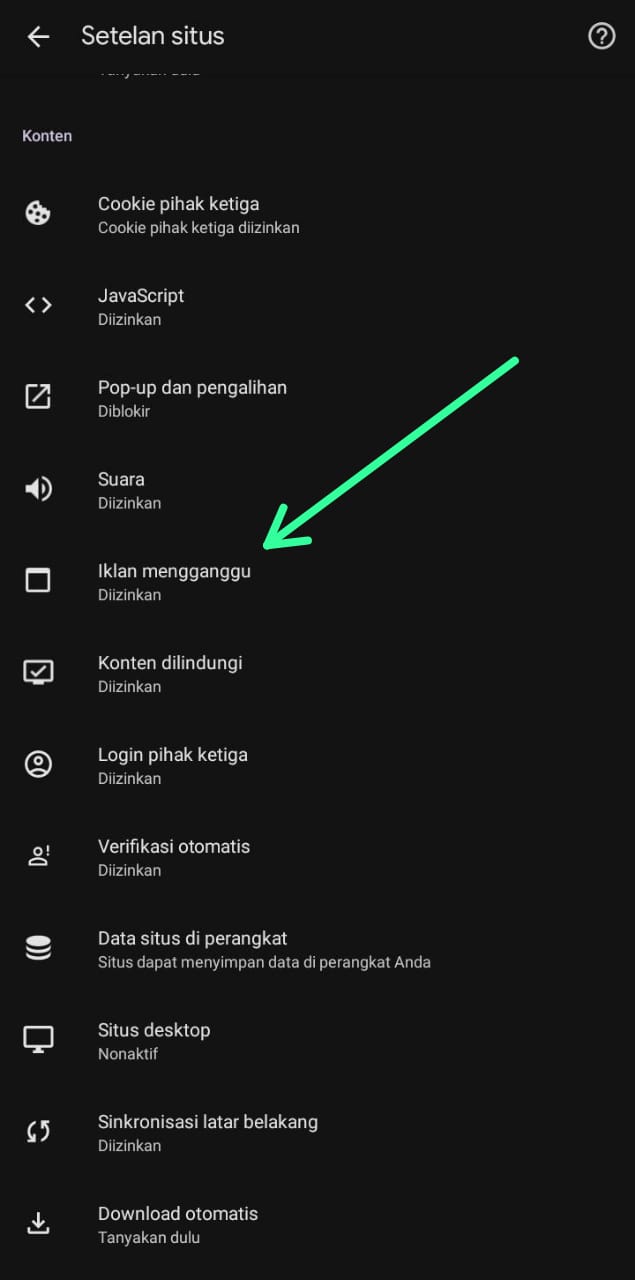
Scroll down slightly until you locate the site settings option.
-
Next, locate the option labeled "annoying ads."
-
Next, select the upper section.
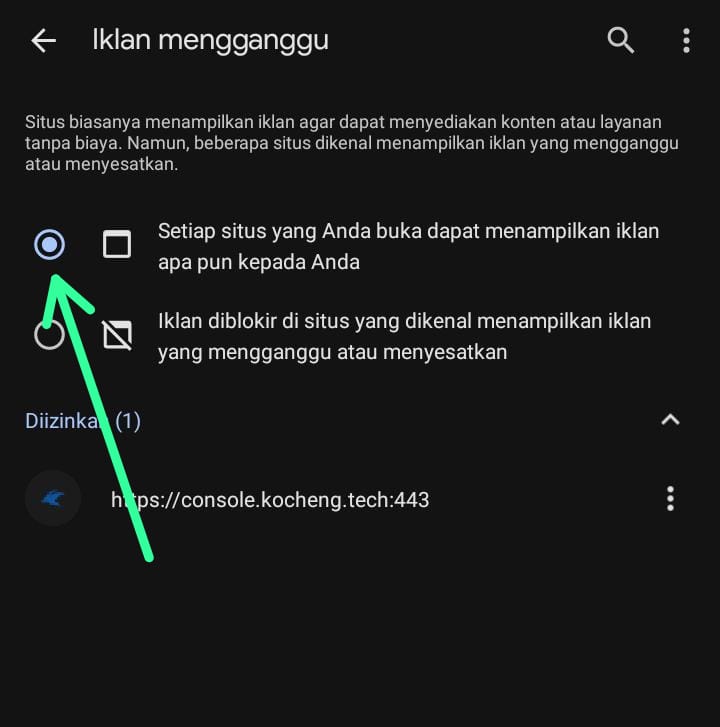
After completing the process, refresh the page to remove the Adblock notification automatically. If Adblock is enabled again, the notification will reappear.